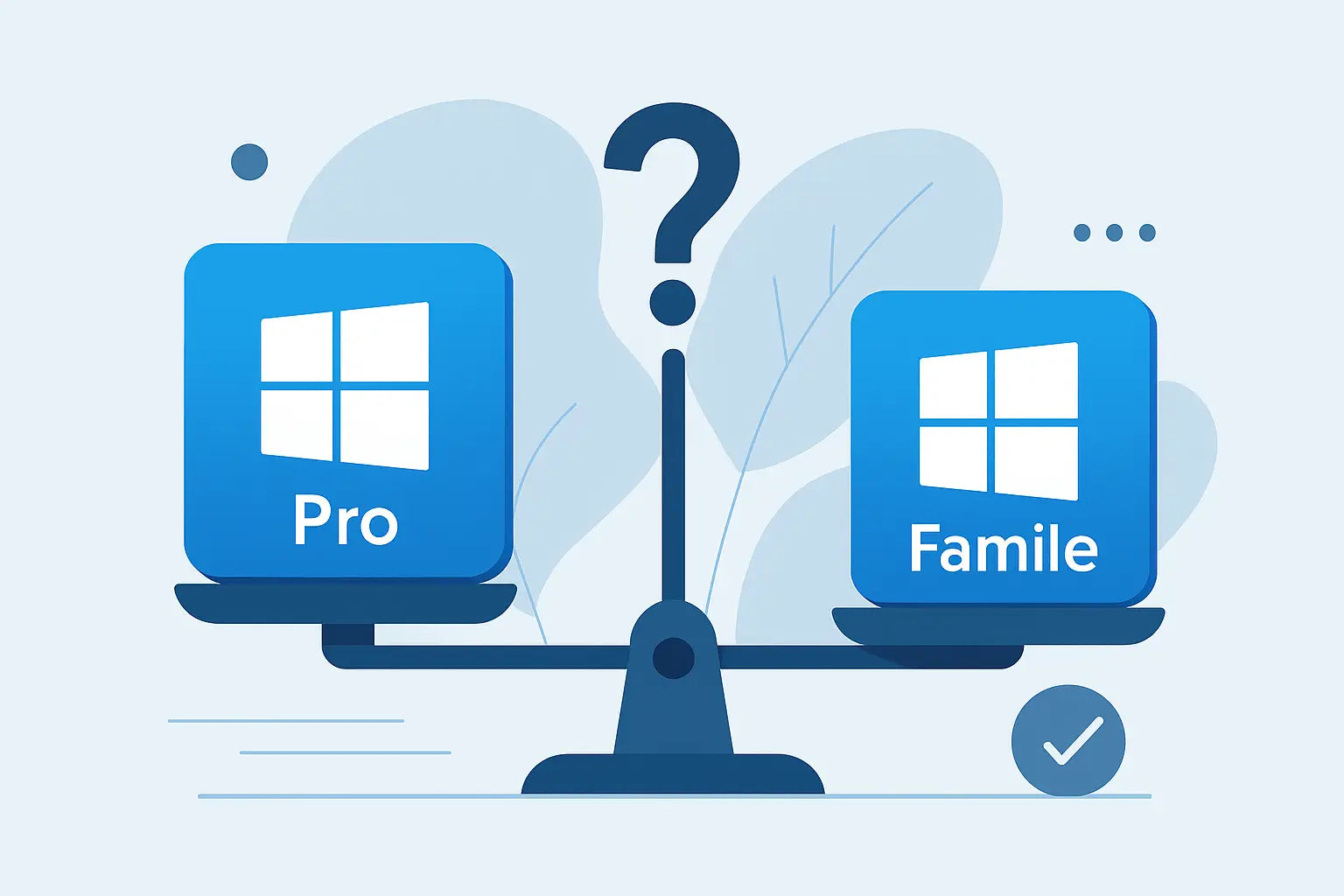
You've just reinstalled Windows on a new or reset PC, and the screen offers you a choice that seems like a minor detail: Home or Pro. Except that behind it are very different uses. The right choice prevents you from paying for an unnecessary option... or from finding yourself blocked the day you need to encrypt a disk, join a domain, or open a remote session.
Windows 11 Pro vs. Home: the real difference
Windows 11 Home is designed for personal use: browsing, office tasks, gaming, streaming, printer, cloud storage, everyday peripherals. Everything is geared towards simplicity.
Windows 11 Pro addresses "workstation" needs: enhanced security, control, administration, and useful features whenever structured teleworking, an IT fleet, or sensitive data are involved. It's not "magically faster." It's better equipped.
In both cases, you have the same Windows 11 base: interface, software compatibility, Microsoft Store, updates, drivers, overall performance comparable with identical hardware. The difference lies in specific functions.
Security: BitLocker changes everything
The simplest question to ask yourself is this: does your PC contain data that should not leave the device if it is lost or stolen?
On Windows 11 Pro, BitLocker allows you to encrypt the disk (or volumes) to render data unreadable without authorization. For a freelancer, a student with a laptop, a teleworking employee, or a small business, this is often the "aha!" feature. It's not there for show: it's a concrete safety net.
On Windows 11 Home, you don't have BitLocker with the same management logic. As a result: you can protect access to your session, but not encrypt and administer the disk at the level expected in a professional context.
Another point: Windows 11 Pro offers management and protection capabilities more suited to businesses (security policies, finer control over settings, deployment scenarios). For a "solo" PC at home, this is often superfluous. For a workstation, it quickly becomes useful.
Teleworking and remote access: Remote Desktop
If you've ever had to access your office PC from home, or let a technician intervene, you know the benefit.
Windows 11 Pro allows you to host a Remote Desktop (RDP) session as a target machine. You can therefore connect to your Pro PC from another device, using a standard framework common in businesses.
Windows 11 Home, on the other hand, is more on the "client" side: you can connect to other machines, but your Home PC is not designed to easily be an RDP session "server." In reality, for many individuals, this is not an issue. For a professional, it's an immediate time-saver.
Managing a PC in a professional context: domain, Azure AD, policies
The point that sways many purchases towards Pro is the ability to integrate the PC into an organization.
Windows 11 Pro can join a domain (Active Directory) and integrate with centralized management. If you are an SMB, have an IT service provider, or simply several workstations to maintain properly, this is a classic prerequisite.
In the same vein, Pro is better suited for modern management scenarios via the Microsoft ecosystem (enrollment, policies, configuration). This may not be your case today, but it's often what happens next: you start with one PC, then two, then you want to standardize, secure, and control.
Windows 11 Home remains relevant when the PC is not intended to be "administered" like a corporate workstation.
Virtualization: Hyper-V and advanced usage
Do you do development, testing, IT training, or do you need to isolate environments? Virtualization can become a productivity tool.
Windows 11 Pro includes Hyper-V, useful for creating and managing virtual machines in a clean environment. This is convenient for testing software, replicating a client environment, running a secondary OS, or validating a configuration without touching your main installation.
On Windows 11 Home, this type of usage is more natively limited. If you don't know what a VM is, it's probably a sign that Home is sufficient. If you already need one, Pro avoids workarounds.
Updates and control: who decides?
Both editions receive security updates. The difference is mainly the level of control.
Windows 11 Pro allows more configuration to organize updates, manage certain system behaviors, and apply rules. For a personal PC, automatic is often the best option. For a production workstation (business software, sensitive compatibility, time constraints), being able to control the timing and certain settings can prevent real interruptions.
Performance and gaming: no "Pro" bonus
It's important to clarify: Windows 11 Pro is not a "higher performance" edition for FPS or video editing, with identical hardware configuration. Gaming optimizations, DirectX support, drivers – all of this is at the same level.
If your sole objective is to play games, watch content, do office tasks, and manage your photos, Windows 11 Home already covers the essentials, without paying for features you'll never open.
Price: pay for what you use
The rational choice comes down to two questions:
First, do you need at least one identified "Pro" feature (BitLocker, Remote Desktop as a host, domain, virtualization, advanced management)? If so, Windows 11 Pro is a utilitarian purchase, not a luxury.
Second, is this a PC that will remain personal and isolated, without compliance constraints, sensitive data, or administration? If so, Windows 11 Home is often the best simplicity-to-price ratio.
From a budget perspective, many buyers primarily want to avoid the Microsoft Store price, while still getting an authentic and immediately activatable license. This is exactly the kind of scenario where a specialized e-retailer can save time and money, with instant key reception and an invoice including VAT. For example, on DaLicences, the approach is geared towards "quick activation" and significant savings, with 24/7 support and a remote installation option if you don't want to spend the evening on it.
Concrete scenarios: which Windows for which profile?
If you are a student, the question is not "Pro sounds more serious." The real question is your exposure to risk and your technical needs. A law student with a laptop and sensitive documents might appreciate BitLocker. A computer science student who does labs, VMs, or tests often benefits from Pro. Conversely, using it for classes, video calls, Office suite, and browsing is perfectly covered by Home.
If you are self-employed, Pro is frequently the best choice by default. Not because you "must" be on Pro, but because you are solely responsible for data security, remote access, and continuity. A PC that leaves the office needs to be encrypted. A PC that needs to be accessible on the go needs to be managed remotely.
If you are an SMB, Windows 11 Pro becomes almost systematic as soon as there is a fleet management logic, an IT service provider, a domain, or a compliance policy. Even with 2 or 3 workstations, the difference is quickly felt: cleaner management, homogeneous settings, simpler maintenance.
If it's a family PC, shared, or a gaming PC, Windows 11 Home is generally the simplest choice. You avoid paying for administration features from which you won't derive value.
Can you upgrade from Home to Pro later?
Yes, and that's a reassuring element. If you start with Windows 11 Home and your needs evolve (more structured teleworking, PC joining an organization, need for encryption), the upgrade to Pro exists.
In practice, this gives you leeway: you can choose Home if you're not sure, then switch to Pro the day you have a clear reason. The reverse (going from Pro to Home) is not standard usage. So if you're hesitant and already have a clear Pro use case, it's best to choose Pro from the start.
The point that avoids mistakes: identify your "non-negotiable function"
The Windows 11 Pro vs. Home comparison rarely hinges on a list of 15 differences. It hinges on a single requirement.
If your requirement is data protection in case of loss: Pro.
If your requirement is remote access as a target machine: Pro.
If your requirement is a simple PC for home, without administration: Home.
The rest is comfort.
Choose the edition that makes your daily life simpler, not the one that sounds most "premium." And if you feel that your needs will become more professional, favor the option that avoids a migration at the wrong time: the day your PC just needs to work, immediately.