
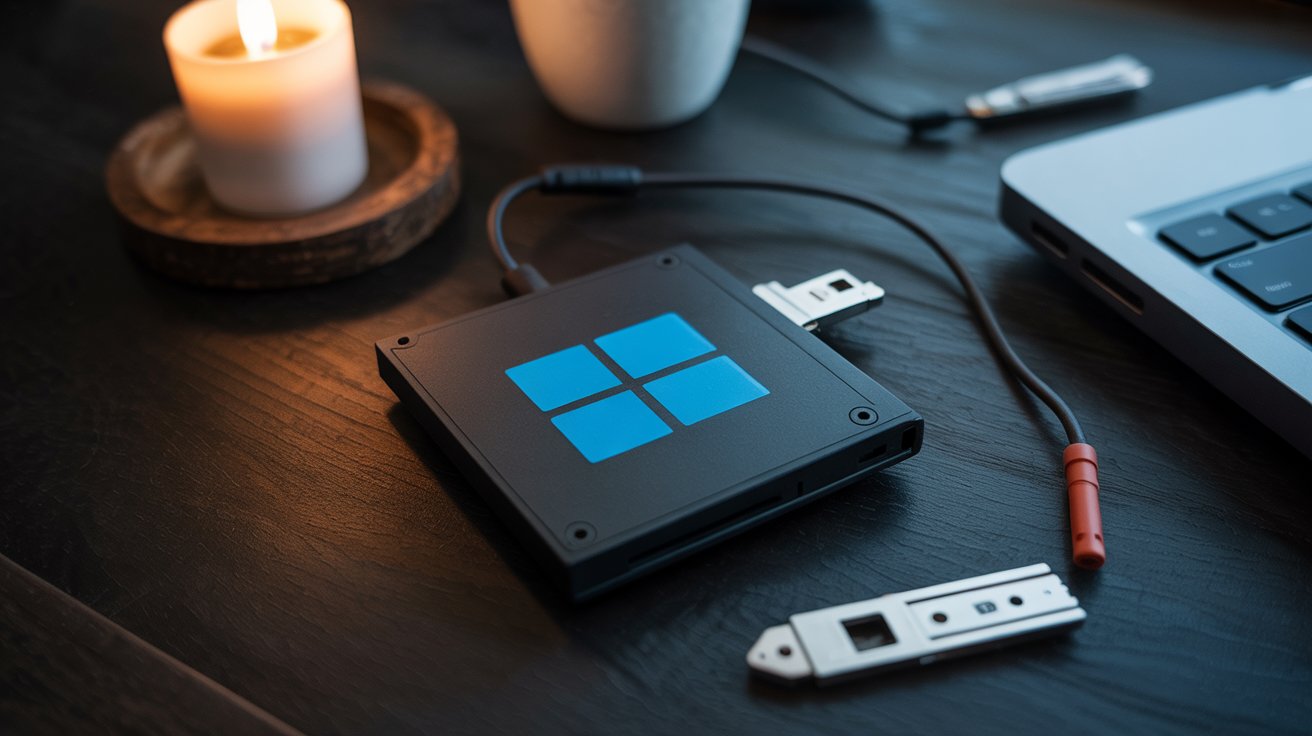
Want to install Windows, test Linux, or fix a fussy PC? A bootable USB drive is your ally. You don't need to be an expert to create one: with a simple USB stick, an ISO file, and a small free software, you can turn your drive into a real computer first-aid kit. In this super simple guide, we'll explain step by step how to do it, whether you're on Windows, Linux, or macOS.
What is a bootable drive and why create one?
A bootable drive is simply a special USB stick: instead of containing only regular files (photos, PDFs, music...), it allows you to boot a computer directly from it, as if it were a hard drive. It's an essential tool for installing an operating system (like Windows or Linux), but also for repairing a broken PC, or testing a new environment without touching your main drive.
Why create one? There are many situations where a bootable drive can save the day. Do you want to reinstall Windows cleanly without going through endless updates? Do you want to try Linux without breaking everything on your current computer? Do you want to bring an old PC back to life that's as slow as a tired snail? The bootable drive is the simple and effective solution to all these problems.
And let's be honest: having a bootable drive on hand is a bit like having a digital first-aid kit.
Don't forget to purchase Microsoft licenses for each installation, of course!
Hardware and tools needed to create a bootable drive
You don't need to be a hacker in a hoodie in a basement to create a bootable drive. In reality, you just need a few simple items, which you probably already have on hand. Here's what you'll need:
- A USB drive of at least 8 GB (16 GB recommended for Windows 11). It will be completely formatted, so remember to back up your files first.
- The ISO image of the operating system you want to install (Windows, Linux, etc.). You can download it from the official website of the system in question.
- Bootable drive creation software, which will "burn" the ISO image onto your drive to make it bootable.
The most well-known?
👉 Rufus (fast and efficient for Windows),
👉 BalenaEtcher (super simple and multi-system),
👉 UNetbootin (handy for Linux, a bit old school but still useful).
A tip: if you plan to use your drive on an old PC, choose the correct partition scheme (MBR for BIOS, GPT for UEFI). And if you don't know what that means, don't worry, we'll talk about it next.

🔧 A little techie wink: formatting your drive to FAT32 before starting is like doing a big clean-up before a party. It avoids unpleasant surprises and reading errors.
Create a bootable drive for Windows step by step
To install Windows from a USB drive, the simplest (and fastest) way is to use a free tool like Rufus. This small portable software does all the work for you. No need for a master's degree in computer science, I promise.
Here's how to do it:
-
Download the Windows ISO image from the official Microsoft website (Windows 10 or 11).
-
Plug in your USB drive (8 GB minimum, it will be formatted!).
-
Launch Rufus and select your drive in the "Device" field.
-
Click on "SELECT" to import the Windows ISO.
-
Configure the options as below (or leave as default if you're unsure):
| Rufus Option | To Select |
|---|---|
| Boot type | Windows ISO image |
| File system | NTFS (or FAT32 if needed) |
| Partition scheme | MBR (for BIOS/UEFI) or GPT (for UEFI only) |
| Volume label | WIN10_USB (or whatever you want) |
-
Click "Start", wait a few minutes, and voilà 🎉
Your drive is ready to bring a PC back to life!
⚠️ Small tip: if you're installing Windows on a recent PC, choose GPT + UEFI. For an older PC, MBR + BIOS is often more compatible. And yes, it's technical... but these are the little things that make all the difference.
💬 "I was afraid it would be too complicated. But with Rufus, I created my bootable drive in 10 minutes, coffee included!" – Lucie, entrepreneur and Sunday superhero.
Creating a bootable drive for Linux, macOS, or other systems
Windows doesn't have a monopoly on bootable drives! If you want to test a lighter, free, or simply different system, Linux is an excellent alternative. And if you work on a Mac, there are also solutions. The process is similar, with just a few different tools.
For Linux, we recommend BalenaEtcher, an open-source and super easy-to-use software. You download the ISO image of your chosen distribution (Ubuntu, Fedora, Debian...), select it in BalenaEtcher, choose your USB drive, and boom, in 3 clicks, it's done. UNetbootin is also an option, a bit more technical, but still widely used.
macOS, however, requires a bit more finesse. You need to use the Terminal and command lines like sudo dd if=..., or use a tool like DiskMaker X (when it's up to date). The important thing is to have the official macOS installation file, available via the App Store.
👉 Good to know: some Linux distributions can even be used as a live USB, without installing anything on the hard drive. Perfect for testing without commitment, like a first date with your future OS.
How to boot from the USB drive once created?
Creating a bootable drive is good. Knowing how to tell your PC "Hey, boot from that" is even better. And for that, you need to go through what's called the BIOS or UEFI, a hidden interface accessible only when the PC starts up.
As soon as you turn on your computer, press one of these keys repeatedly (depending on the brand):
- F2, F12, ESC or DEL to access the BIOS or the boot menu.
- Sometimes, it's fleetingly written at the bottom of the screen at startup: "Press F12 for Boot Menu" (if you're quick, you'll see it... otherwise, restart 😅).
Two options are available to you:
- Quick boot menu: you manually choose your USB drive, without changing anything.
- BIOS/UEFI: you go to the startup settings (Boot Order) and put your USB drive first in the list.
Once that's done, you restart, and then... magic: your PC boots from your drive, ready to launch the installation or live session.
💡 Old hand's tip: some recent PCs block USB boot for security reasons (Secure Boot). You may need to disable it in the UEFI. Don't worry, it's simple and reversible.
And there you have it! If you see the Windows or Linux logo appear from your drive, you've done it. If instead, your PC says "No bootable device", stay with me... the last part is for that.
What to do if the bootable drive doesn't work?
You've done everything right, you start your PC... and then, a black screen or a message like "No bootable device"? Don't worry, you're not alone. Here are the most frequent causes and how to fix them:
- ❌ Corrupted ISO file: if the downloaded image is incomplete or damaged, it won't work. Solution: re-download it from the official website of the system (never use dubious sites).
- ⚠️ Wrong partition scheme: GPT or MBR? If you made a mistake when creating the drive, it won't be recognized. Recreate the drive with the correct format depending on your BIOS/UEFI.
- 💽 Incorrect boot order setting: if the drive is not in the first position in the boot order, the PC won't launch it. Dive back into the BIOS and adjust that.
- 🧼 USB drive not formatted correctly: sometimes, an old or poorly cleaned drive can cause problems. Remember to completely reformat it before starting again.
📌 Here's a quick recap of checks to make:
- ✅ Check ISO integrity
- ✅ Test the drive on another USB port (or another PC)
- ✅ Use different software if the first one fails (Rufus, BalenaEtcher...)
- ✅ Disable Secure Boot if needed
And if, after all that, it still doesn't work... Take a deep breath, reformat the drive, change tools, and start over. It happens to everyone (even pros). The main thing is to keep calm... as a certain Jedi said: "Patience, young Padawan." 😌

Buy Windows 11: Where to find the best price for an official license?
Where to safely buy a Windows 11 Pro key